1. Open OBS Settings
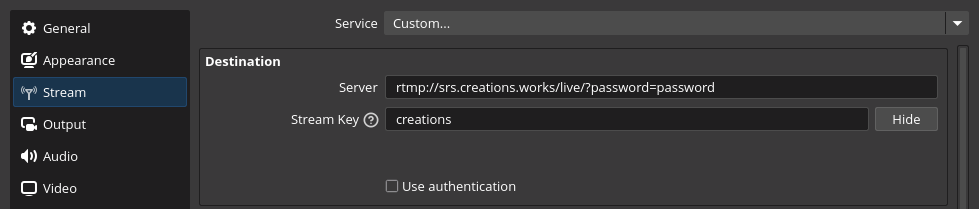
In OBS, go to Settings then Stream. Set Service to Custom...
Available Servers
Pick the server closest to you for the best experience. The URLs below will update when you select one.
2. Enter Server Details
You'll need an account to stream. Create one here if you don't have one yet.
Option A: Use your Stream Key (Recommended)
Find your stream key on your settings page and add it to the server URL:
rtmp://srs.creations.works/live/?key=YOUR_STREAM_KEY
your-username
Option B: Use your Password
Set the Server to the URL below with your password, and use your username as the Stream Key:
rtmp://srs.creations.works/live/?password=your-password
your-username
SRT Streaming (Alternative)
You can also stream using the SRT protocol for lower latency. In OBS, set Service to Custom... and use:
Option A: Use your Stream Key (Recommended)
srt://srs.creations.works:10080
#!::r=live/your-username?key=YOUR_STREAM_KEY,m=publish
Option B: Use your Password
srt://srs.creations.works:10080
#!::r=live/your-username?password=your-password,m=publish
3. Start Streaming
Click OK to save, then hit Start Streaming. Your stream should appear on the home page within a few seconds.
Recommended Settings
Common Issues
Double-check the server URL. Make sure there are no extra spaces. If auth is enabled, the password goes in the Server field as a URL parameter, not in the Stream Key.
Wait a few seconds after starting. If it still doesn't appear, check that your stream key doesn't have special characters. Try a simple name like your username.
Lower your bitrate if your upload speed can't keep up. You can test your upload speed at fast.com. Your bitrate should be well under your upload speed.